Make the Household’s Connections Understandable
A home network connects more than a computer to the internet. It may join work laptops, school tablets, cameras, a television, a printer, and visitors’ phones through equipment nobody has reviewed since installation. Home network security means understanding those connections and keeping the important boundaries working: who can join Wi-Fi, who can change the router, which devices can reach one another, and which products still receive security updates. You do not need to turn family life into an IT department. A small device map, a few deliberate router settings, and a practical way to ask for help can reduce avoidable exposure. This guide follows a fictional household through those decisions, while leaving exact setup instructions to the provider or manufacturer responsible for its particular equipment.
A: They protect different capabilities: administering the equipment and joining the wireless network.
A: It depends on the service arrangement; confirm the provider's responsibilities and the supported update method.
A: No. Check its supported modes and consider a documented compatible connection or replacement without weakening unrelated devices unnecessarily.
A: No. Check the model's isolation and local-access settings and their behavior in the configured operating mode.
A: Local discovery or the needed connection may be blocked by the new boundary; assess the necessary access before changing it.
A: No. Compare it with actual equipment and account for unclear names or privacy-related device-address behavior.
A: Not by itself. Message verification and account protection address different failure paths.
A: Keep the model, provider contact, approved management route, and relevant recovery information securely available to them.
A: Identify their purpose and remove or restrict those no longer needed through the documented management process.
A: Verify the router's administration and update arrangements, then complete one understood setting or device-maintenance change and check the result.
Find the Equipment That Actually Controls the Network
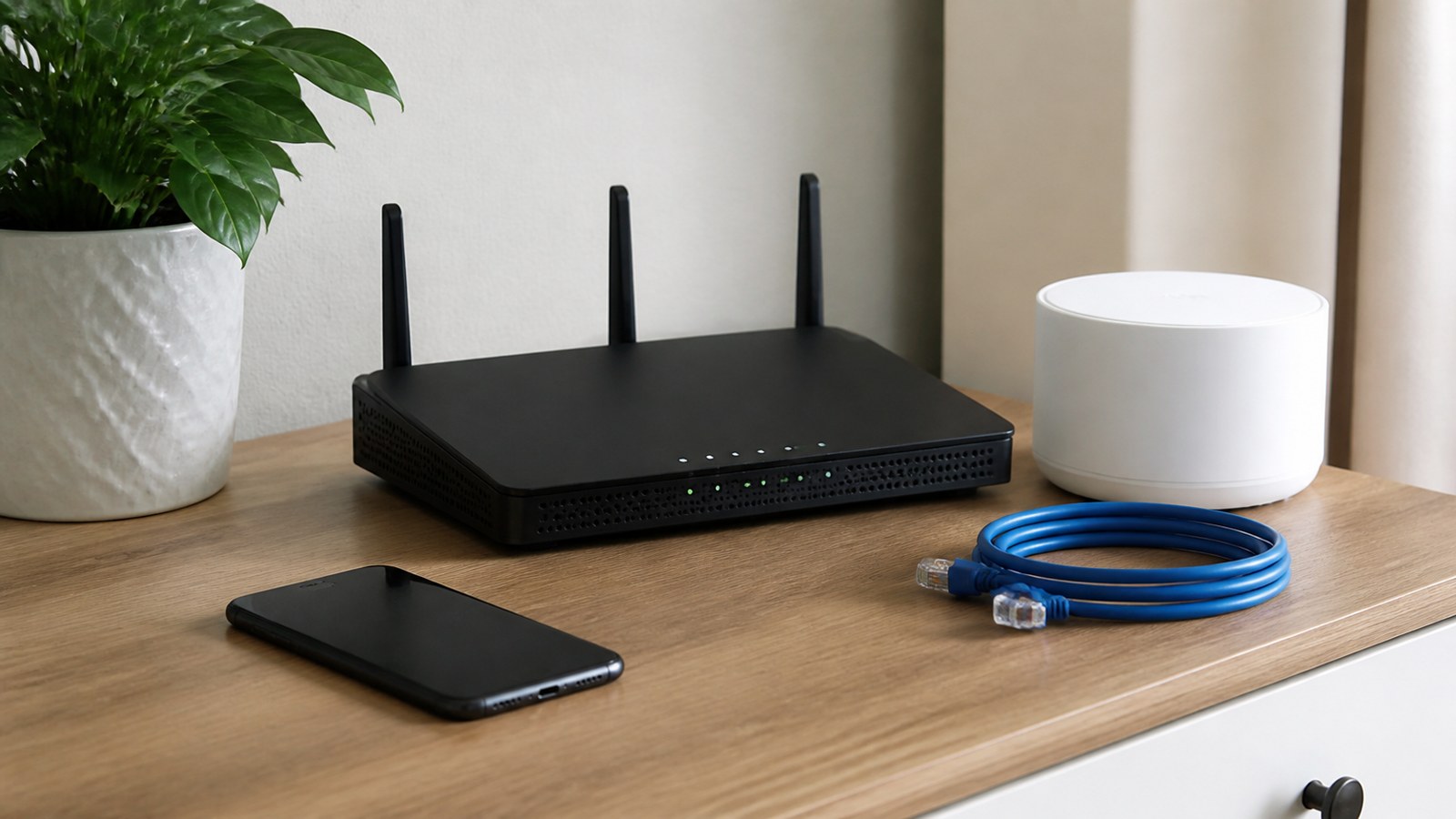
In the fictional household, Alex and Sam use an internet-provider gateway in the hall and two mesh units for coverage. The gateway may combine modem, router, and Wi-Fi functions, while the mesh equipment may provide some of those functions separately. Before changing settings, they check which device and account manage their network. Otherwise they could update one piece of equipment while assuming they have secured every component.
Record the exact model, the support provider, and the official configuration app or webpage. Use the provider’s established instructions rather than an unsolicited support message or a search advertisement offering immediate repairs. If the equipment is rented or managed by the internet provider, ask which updates and settings the provider controls. A household needs enough information to maintain the system and contact the right support channel, not an invented configuration procedure that applies to every router.
Two Passwords Can Protect Two Different Things
The Wi-Fi password lets a device join the wireless network. The router’s administrator credential lets an authorized person change settings such as the network password or management options. These may be separate even when the same person originally chose both. Protect the administration account with a unique strong credential and any supported additional authentication, while using an appropriate strong password for the wireless network. The FTC’s home Wi-Fi guidance explains this distinction. Giving a visitor internet access should not require giving them the ability to administer the household’s router.
Choose a Supported Wi-Fi Security Mode
Wi-Fi security controls how devices authenticate and how their wireless traffic is protected. Apple’s router-settings guidance recommends WPA3 Personal where supported and describes WPA2/WPA3 Transitional mode for compatibility with older devices. It identifies WPA2 Personal with AES as an option where the stronger modes cannot be used and warns against obsolete modes such as WEP and TKIP. Check the equipment’s own instructions and device requirements before making a change.
For Alex and Sam, the decision includes an older printer. They should determine which secure modes it supports instead of weakening every device’s protection simply because it fails to reconnect. A supported wired connection, a carefully understood separate arrangement, or eventual replacement may be more appropriate. The choice depends on the router and printer capabilities; a separate network name alone does not establish a secure boundary.
Plan changes when a brief interruption will not disrupt school, work, or an essential household device. Keep an approved way to regain administration access and record the settings being changed. Afterward, verify that the intended devices reconnect and the selected security mode remains active. A configuration change is complete when the result is understood, not merely when someone pressed save.
Updates Protect the Router and Each Connected Product
Router firmware is the software running the networking equipment. Use the supported update mechanism, and enable automatic security updates when the product provides a suitable option. The provider may perform those updates for managed equipment. A new phone update does not update the router, just as replacing the router does not repair an old camera’s software. Each device needs its own support and maintenance path.
Alex and Sam can check one product at a time: identify the model, find its update process, and confirm whether it is still supported. The UK NCSC’s smart-device guidance encourages buyers to consider ongoing manufacturer support. Avoid assuming that the date of purchase proves current support, especially for stock that may have been on sale for years. An unsupported product needs a deliberate decision about continued network use or replacement.
A Device Map Answers What Is Actually Connected
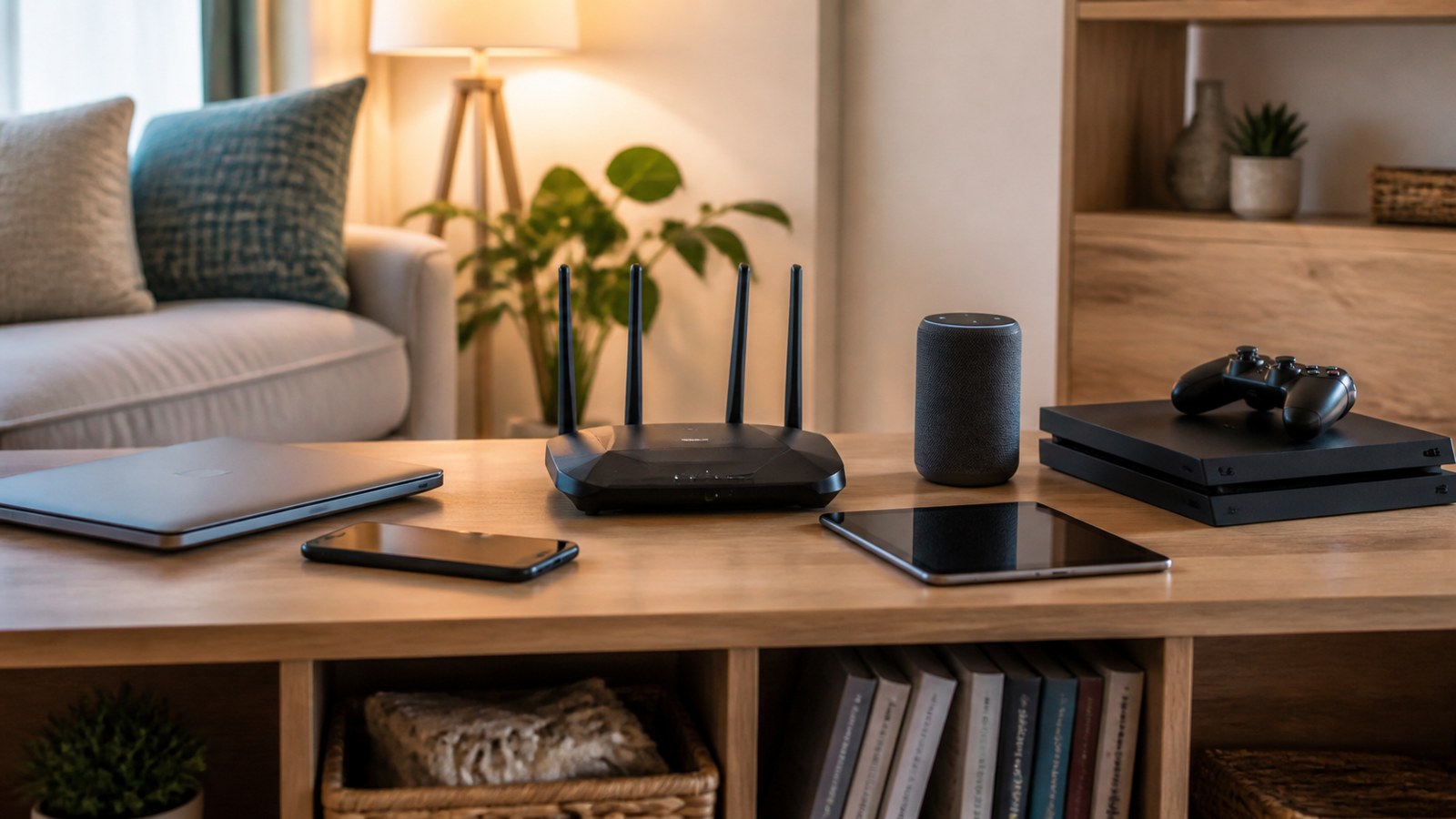
Start with a simple household list: work laptop, personal laptop, phones, school tablet, printer, television, camera, and mesh units. Include wired products as well as Wi-Fi devices. For each, identify the person responsible, its purpose, and how it is updated. This is a practical ownership record, not a requirement to collect private browsing histories or monitor every family conversation.
The router’s connected-device list can help, but the names may be unclear or outdated. A phone’s privacy features can also change the address it presents to the network. An unfamiliar entry is a reason to compare with the equipment in the house, not immediate proof that a stranger has joined. Match entries carefully and use vendor instructions when identifying a device. Do not disconnect an unknown item before considering whether it supports a household function someone relies on.
In the example, the mysterious entry turns out to be the printer rather than an intruder. Alex gives it a recognizable label where the management interface allows one. They also find an unused streaming box still powered behind the television. Removing a product nobody needs reduces maintenance work and the number of connected systems, without requiring an accusation that the product is already compromised.
The map can also identify products the household should not administer itself. A work laptop may belong to an employer, and a school tablet may use centrally managed settings. Alex and Sam can record the support contact and explain the home connection without changing those devices to match a personal preference. This avoids turning a router review into an unauthorized alteration of equipment another organization is responsible for protecting.
A Guest Network Needs Actual Isolation Settings
A guest network can give visitors internet access without routinely sharing the main household credentials. Whether it also prevents guests from reaching local devices depends on the router’s configuration and operating mode. For example, TP-Link’s guest-network instructions describe an option allowing guests to access the local network. The option’s existence shows why the word guest is not enough to determine the access boundary. Read the exact model’s guidance and check the intended behavior rather than assuming every product isolates guests identically. In a planned household check, Alex can connect a spare phone to the guest network and verify that ordinary browsing works while a selected local household resource remains unavailable as intended. Use only equipment the household owns and is authorized to manage. The check should match the specific restriction being claimed; inability to discover one printer does not prove every possible local connection is blocked. Ask the provider for help when the available interface cannot demonstrate the expected boundary clearly.
Separate Smart Devices Without Breaking Their Intended Use
A separate guest or device network may reduce the reach of a less-trusted product toward work computers and personal files. It can also stop legitimate local discovery, such as a phone finding a printer or casting to a television. Decide which connections are necessary before moving devices, and use features your equipment actually supports. Do not weaken all isolation merely because one convenience function stops working.
For Alex and Sam, the camera may only need internet access for its approved service, while the printer needs a connection from selected household computers. Those requirements are different. They can ask support whether the router offers an appropriate arrangement rather than placing every product into one broad exception. If the device network remains able to reach the internet, separation also does not prevent a compromised device from communicating externally. It limits a particular local path, not every possible harm.
Remote Management Is Different From Using the Internet
Remote management can let someone change a device’s settings from outside the home network. That may be useful in a supported management arrangement, but it creates an additional access route that should not be enabled casually. Identify whether the household uses the feature, who controls the associated account, and how access is protected. If it is unnecessary, follow the provider’s instructions for disabling it. Avoid confusing remote administration with ordinary browsing: turning off an unused management option does not mean the family must stop accessing websites.
Port forwarding and other connection features also deserve a purpose check. A game, camera, or home server may have led someone to change router settings years earlier. If that purpose no longer exists, review whether the exception should remain. Do not delete an unfamiliar rule blindly on equipment maintained by another household member or support provider. Establish what it does, then remove or restrict the unnecessary exposure using the documented process.
A request from a device installer to disable broad protective settings should prompt a pause and a question about supported alternatives. Convenience does not explain why every unrelated device should become reachable. The household should understand the access a feature needs and who will maintain it afterward. If the requirement cannot be explained by a trustworthy source, postponing the installation can be a better choice than leaving an indefinite exception nobody remembers.
The Network Does Not Decide Whether a Message Is Honest
Secure Wi-Fi protects a different problem from a fraudulent payment request or a stolen account. A family member can be connected through a well-configured router and still enter credentials into an imitation website. Keep important accounts protected with appropriate sign-in and recovery methods, and verify consequential requests through known channels. Network filtering can provide another layer, but it cannot turn every allowed webpage into a trustworthy service.
Alex and Sam can give family members a simple way to ask for help: report an unexpected sign-in request, unfamiliar support call, or device installation prompt before following its instructions. The person asking should not need to prove an attack occurred. A calm response encourages early reporting, while blame can make someone hide the event. The technical task is to check what happened and protect the relevant access, not to make the family afraid to use its devices.
Make Maintenance and Replacement Manageable
Keep support details and recovery information where the responsible adults can reach them securely. If the usual administrator is away, another trusted person should know whom to contact and which equipment is involved. Set a reminder that fits the household for checking support notices and devices that do not update automatically. Revisit the list when someone moves in, a child receives a new device, work equipment changes, or an old product is retired.
Before selling or recycling a connected device, follow its documented data-removal and account-unlinking process. Removing it from the shelf does not necessarily remove its cloud-account association. Conversely, deleting a product from an app may not erase information stored locally on it. A short retirement check helps avoid leaving private recordings, network credentials, or account relationships behind, while keeping the household device map accurate.
Choose replacement products partly by their support information. A clear update procedure, identifiable manufacturer, and usable recovery instructions make ownership easier than a low purchase price with no maintenance route. This is not a guarantee that a supported device can never be compromised. It is a practical way to make future problems resolvable without depending on unofficial software or a stranger’s remote-access offer.
Finish With a Small, Verified Household Improvement
Alex and Sam do not need to change everything in one evening. They can first establish who administers the router and verify its update process, then improve a supported Wi-Fi setting or guest-access boundary. Next they can identify the connected products and retire the unused one. Each change should preserve essential functions and leave a clear way to recover if something fails. Home network security becomes sustainable when the household understands what a setting protects, confirms the result, and knows how to ask for trustworthy help.